Professional Email Signature Design Using Claude AI (Step‑by‑Step Guide)
If you want a professional email signature that works reliably in Outlook and Gmail without paying for another subscription tool, this is a simple way to design one using Claude AI as your coding partner.
My email signature had been quietly neglected. It still worked, but it had that familiar feel of something designed years ago and never revisited. The colours no longer matched my brand, some social links were outdated, and overall it no longer reflected the business I run today.
I could have rebuilt it myself. I work with CSS regularly on client websites and I am comfortable writing code. But HTML email signatures are their own special category of frustration. Outlook renders things differently from Gmail, tables still matter, and small visual tweaks often require far more testing than they should. It is the kind of task that absorbs time without adding much value.
So I tried a different approach. I treated AI as a coding partner rather than a design tool. I stayed responsible for decisions around layout, colours, spacing, and content, and used Claude to handle the repetitive coding and the trial and error across email clients. That balance made all the difference.
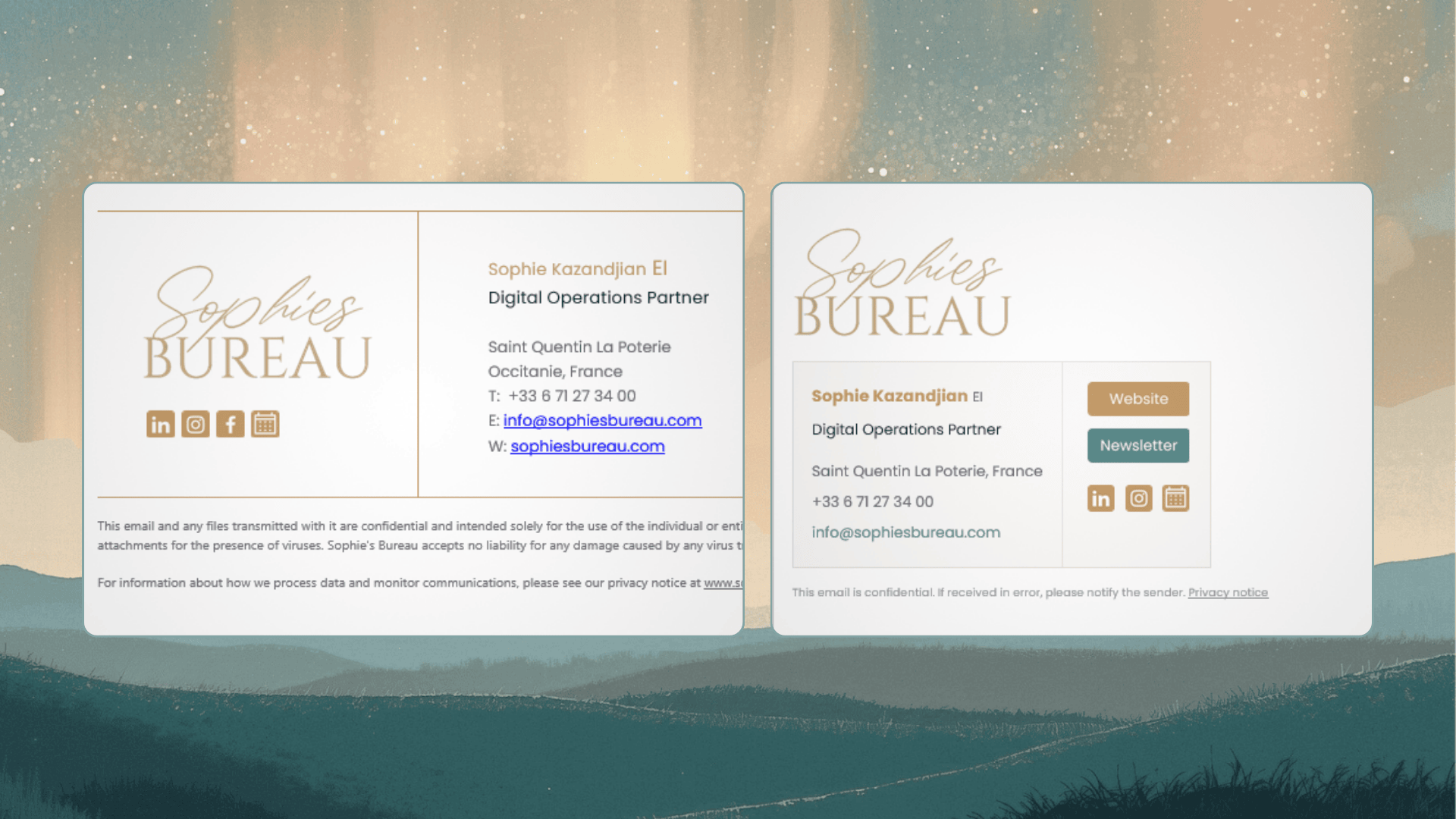
Updating my HTML email signature using Claude AI
Before and After: From Cluttered to Professional Email Signature
The old signature (on the left) was cluttered, visually inconsistent, and still linked to platforms I no longer use. The disclaimer was long and unwieldy.
The new version (on the right) is clean and restrained, uses my brand colours of dusty gold and teal, and includes properly aligned buttons that render consistently. It finally looks like it belongs to a business in 2026.
Why This Worked
What made this process effective was clarity of roles. I stayed firmly in the design seat, making judgement calls about how the signature should look and function, while Claude handled the implementation details.
When I asked for buttons to be the same width, it tried CSS based solutions first, then moved to table layouts when Outlook failed to cooperate. When borders clipped, it adjusted padding. When consistency mattered more than flexibility, it switched to image based buttons to guarantee reliable rendering across email clients.
I even had Claude generate the button images themselves, sized correctly and styled to match my brand, ready to upload and drop into the signature. That removed another small but fiddly step that usually slows this kind of work down.
These are exactly the tasks that tend to eat time. Testing. Tweaking. Fixing edge cases. By letting AI absorb that layer of work, I reached a polished result far faster than I would have working alone, without giving up control or quality. This is generally how I use AI in digital operations. Human judgement sets direction, AI supports execution, and a final human check signs it off.
How to Create Your Own Professional Email Signature with Claude (Step‑by‑Step)
This approach works whether you are comfortable with code or have never touched HTML before. What matters most is knowing what you want your signature to communicate and being able to describe it clearly.
I have put together a short step by step PDF guide that walks you through the entire process, from preparation to installation.
What to prepare before you start
Example prompts you can adapt
How to iterate without breaking layouts
How to install your signature in Outlook on Windows and Mac
How to install it in Gmail
How to troubleshoot common issues
The guide is free, and there is no subscription involved, unlike many signature tools that charge monthly for something you may only update once every few years.
If you have questions or want to share what you built, you are welcome comment below or get in touch with me.
If you’d like more ideas for using AI in practical, low‑drama ways, you can explore my 2026 AI stack for calm, human‑led digital operations: